Which router do I have? How to find the model name
A simple way to tell your router apart from your Wi-Fi name — and why the exact model is worth knowing before you plan anything for the home network.
A simple way to tell your router apart from your Wi-Fi name — and why the exact model is worth knowing before you plan anything for the home network.
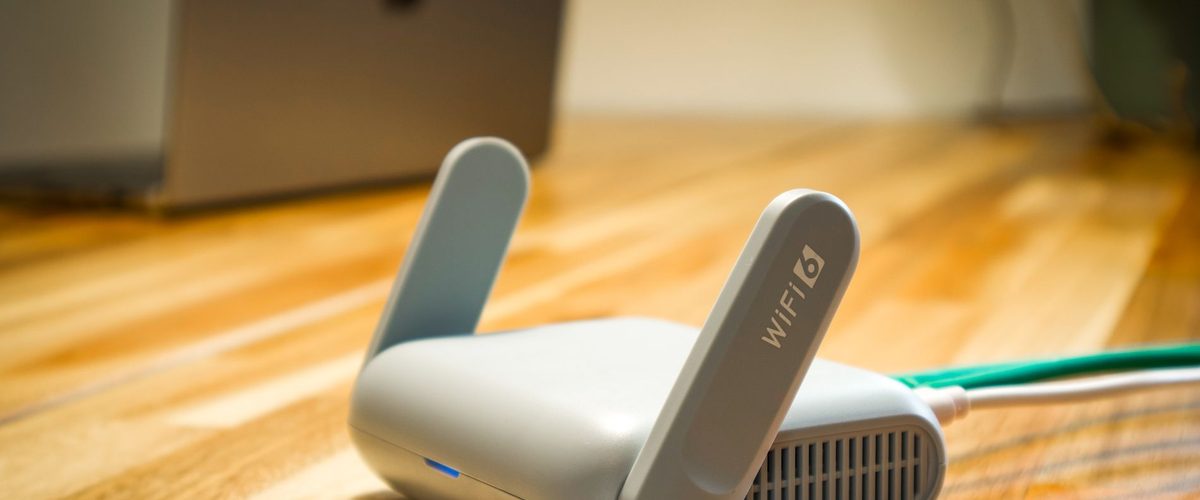
In short:
1. The model name is almost always printed on a label on the underside or back of the box, not in the app or the network name.
2. Your Wi-Fi name is not the model. It can be changed freely and tells you nothing about the hardware.
3. Knowing the model tells you what's possible — and Owlyfi does not monitor your child while it works.
Most homes have more than one box near the front door or the desk. Only one of them matters for this.
If you're not sure which is which, look for the one with the most cables coming out of it. That's usually the one to check.
It's fine if you have more than one box worth noting. Write down each one, and mark which one the cable from the wall actually reaches first — that ordering matters more than which box looks the newest.
Turn the box over. Manufacturers print this information in roughly the same place every time.
Both TP-Link and ASUS document this exact process for their own hardware — the label is the fastest, most reliable source, faster than searching by network name. One caution worth repeating: never photograph or share that label if the same shot also shows a password written nearby.
Plenty of homes run whatever box their internet provider supplied rather than one bought separately.
It's a common assumption, and it's usually wrong.
Owlyfi is parental control that runs on the router — not on your kid's phone. Owlyfi can help a household repeat an agreed internet-access schedule automatically, rather than someone having to enforce it every evening: create a schedule for bedtime, homework, or dinner, choose days and times, and change them any time. What's actually possible depends on the router model, which is exactly why a precise model name is useful before you start.
What we deliberately don't do matters just as much: Owlyfi does not monitor the child using the network. No messages, no location, no browsing history.
It sets a boundary around the network — everything else stays between you and your family. See how that plays out in our guide to parental controls without an app on your child's phone.
If you replace the router later, repeat these three notes rather than assuming an old setting still applies. Keep them somewhere you can find again — just never in the same note as a password.
Look at the label on the underside or back of the router for "Model" or "Model No." If the box itself is out of reach, check the original packaging or your ISP's documentation instead.
Usually not. The Wi-Fi name identifies the network; the model name identifies the physical device. Use the label or the manufacturer's own documentation to find the model.
Write down the names of both. It makes it much easier to identify which device actually controls the internet connection, and to describe your setup if you ever need help.
What's possible depends on the router model. Owlyfi tries to find the router on the home Wi-Fi and shows what's available on supported models, which is why a precise model name is useful.
No. The model name is normally readable straight off the label. Just never share a photo that also shows a password.
No. Owlyfi does not monitor the child — it doesn't read messages, track location, or log browsing history.
All sources accessed 24 September 2026.
Free, no ads. Owlyfi is in closed testing — we launch soon.
Join the test